Tune-Up
TUNE-UP
← Back← ย้อนกลับ
Tune-Up Connect app icon
Support

Tune-Up Connect

App support for iPhone and Android
คู่มือการใช้งานแอป สำหรับ iPhone และ Android
Tune-Up Connect reads your car's ECU and a GPS timing device at the same time, shows both live, and records them onto one clock. This page covers what you need, how to get connected, what to do when it will not connect, and how to delete your account.
Tune-Up Connect อ่านค่าจากกล่อง ECU ของรถกับกล่องจับเวลา GPS พร้อมกัน แสดงสดทั้งสองทาง และบันทึกลงไฟล์เดียวที่ใช้นาฬิกาเดียวกัน หน้านี้รวมวิธีใช้งาน อุปกรณ์ที่ต้องมี วิธีแก้เมื่อต่อไม่ติด และวิธีลบบัญชี
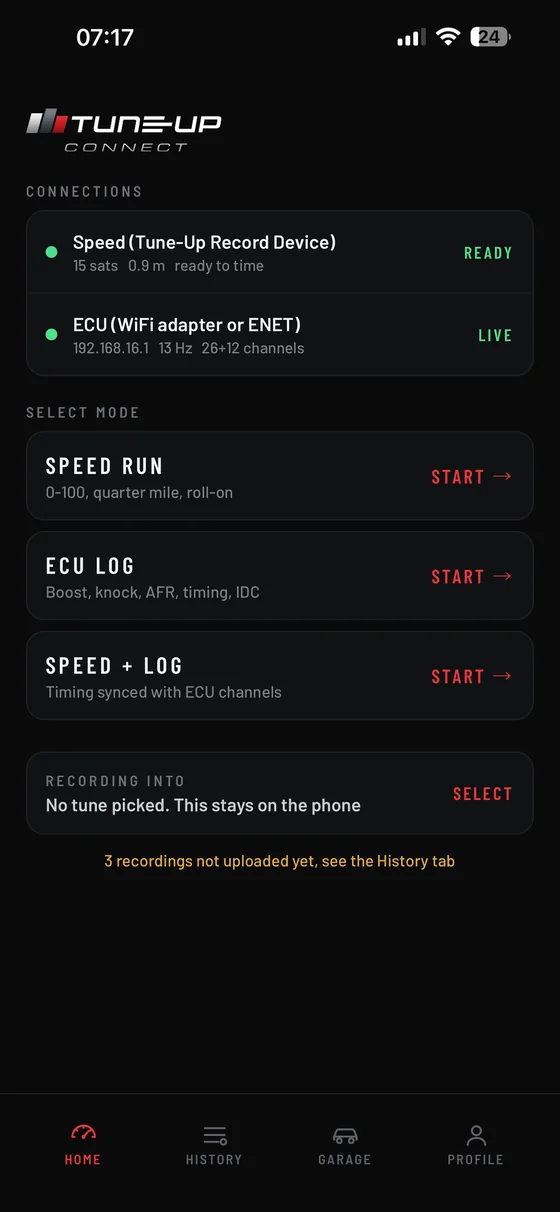
Home screen with a Tune-Up Record device and an ECU adapter both connected
Connectionsการเชื่อมต่อ
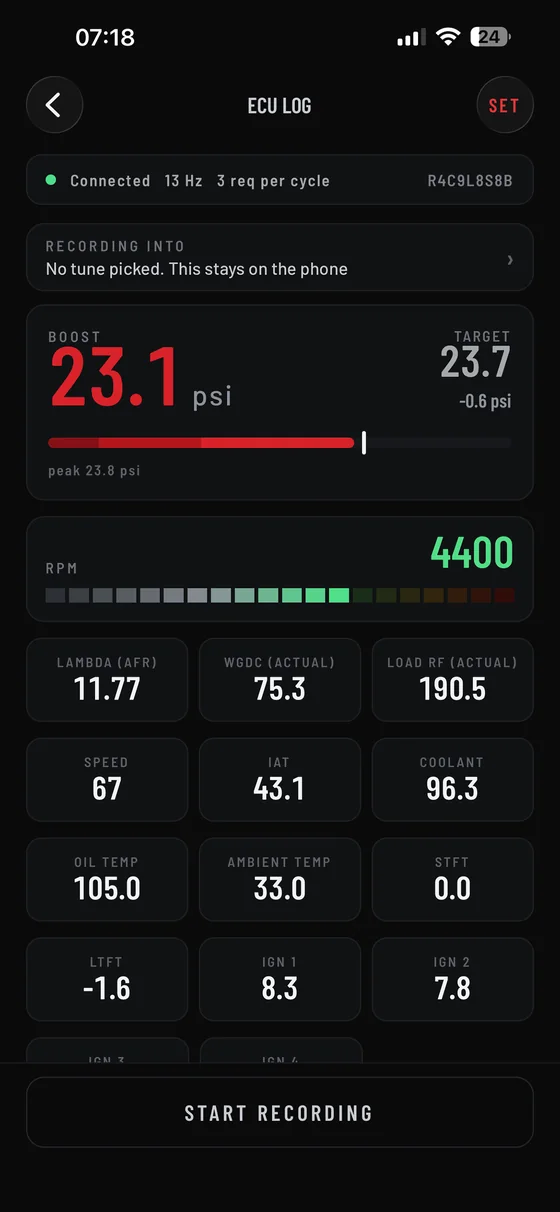
Live ECU gauges showing boost against the ECU boost target
ECU logหน้าปัด ECU
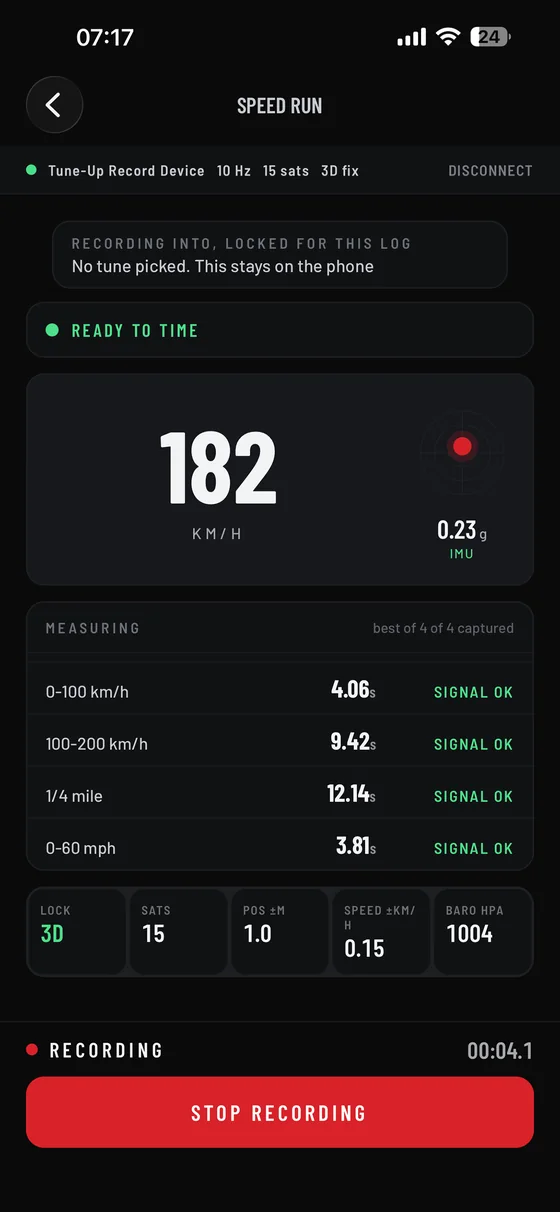
Speed run screen timing 0 to 100 km/h and the quarter mile
Speed runจับเวลา
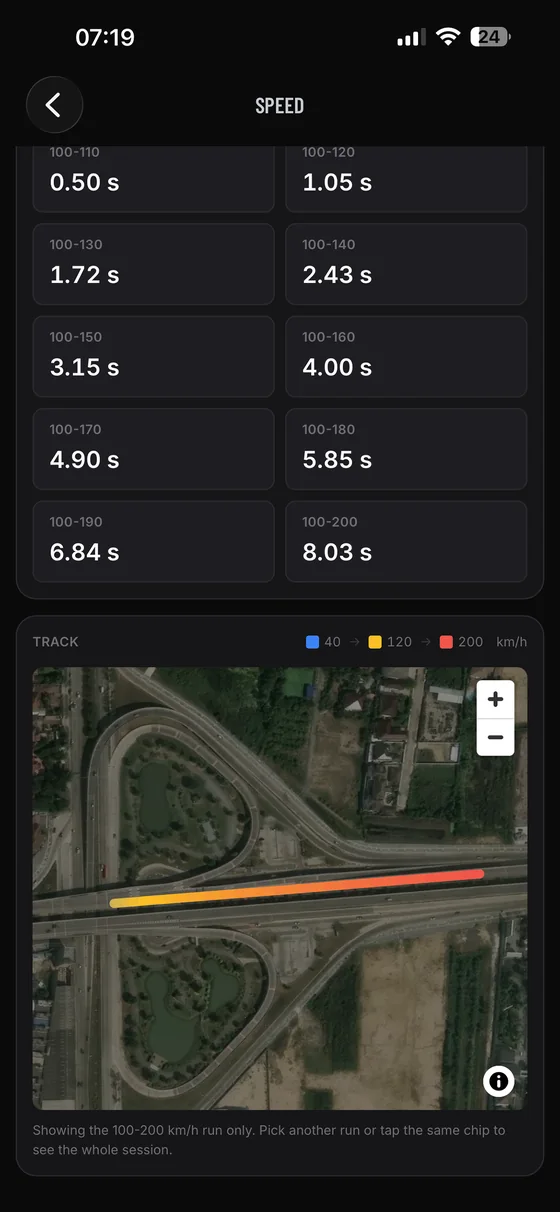
Run analysis with split times and the run drawn on a map
Run analysisอ่านผล

1 What the app doesแอปทำอะไรได้บ้าง

  • Live gauges. Boost, air fuel ratio, ignition timing, temperatures and more, at the rate your ECU can answer. Boost is drawn against the ECU's own boost target.
  • Speed runs. 0 to 100 km/h, 0 to 60 mph, quarter mile, roll ons and braking distances, timed from Doppler ground speed rather than from position differences.
  • Combined logging. ECU channels and GPS recorded into one session on one clock, so engine data and road speed line up.
  • Shift beep. One beep as the engine crosses an rpm you choose, with the boost bar flashing while you are at or above it. Off until you turn it on.
  • Upload, if you tune with Tune-Up. Signing in pulls your jobs, your maps and every revision from Tune-Up Console. Pick the revision before you record, and the log reaches the shop already tagged with the car, the map and the revision it was made on, which is what makes comparing two revisions straightforward. When a new revision is added to your tune, the app offers to record into that one instead. Everything else on this list works without an account.
  • หน้าปัดสด บูสต์ อัตราส่วนผสม (AFR) องศาไฟ อุณหภูมิ และอื่นๆ ตามอัตราที่กล่องตอบไหว โดยบูสต์จะวาดเทียบกับเป้าบูสต์ (boost target) ของกล่องเอง
  • จับเวลา 0 ถึง 100 กม./ชม. ควอตเตอร์ไมล์ ช่วงกินตัว และระยะเบรก คิดจากความเร็วแบบ Doppler ไม่ใช่การนำพิกัดมาหารเวลา
  • อัดรวม อัดช่อง ECU กับ GPS ลงเซสชันเดียวบนนาฬิกาเดียว ข้อมูลเครื่องกับความเร็วจึงตรงกันจริง
  • เสียงเปลี่ยนเกียร์ ดังหนึ่งครั้งเมื่อรอบถึงค่าที่ตั้งไว้ และหลอดบูสต์จะกระพริบตอนรอบถึงหรือเกิน ตั้งปิดไว้เป็นค่าเริ่มต้น
  • อัปโหลด สำหรับลูกค้าที่จูนกับ Tune-Up พอล็อกอิน แอปจะดึงงาน แมป และ revision ทุกตัวมาจาก Tune-Up Console เลือก revision ก่อนกดอัด ไฟล์ที่ส่งถึงร้านจะมีป้ายบอกอยู่แล้วว่าเป็นรถคันไหน แมปไหน revision ไหน ซึ่งเป็นเหตุผลที่เอาสอง revision มาเทียบกันได้ง่าย และเมื่อมี revision ใหม่เข้ามา แอปจะถามให้ย้ายไปอัดลงตัวใหม่แทน ส่วนข้ออื่นในรายการนี้ใช้ได้โดยไม่ต้องมีบัญชี

2 What you needต้องใช้อะไรบ้าง

  • To read the ECU: a BMW with a compatible ECU, plus either a Wi-Fi OBD adapter or a wired ENET cable.
  • To time a run: a Tune-Up Record, Dragy or RaceBox device, over Bluetooth.
  • You can use either half on its own. The ECU half alone gives you gauges and logging. The GPS half alone gives you timing.
  • The app reads only. It never writes to the ECU and never changes your calibration.
  • สำหรับอ่าน ECU รถ BMW ที่กล่องรองรับ บวกกับ OBD adapter แบบ Wi-Fi หรือสาย ENET
  • สำหรับจับเวลา กล่อง Tune-Up Record, Dragy หรือ RaceBox ต่อผ่าน Bluetooth
  • ใช้แค่อย่างใดอย่างหนึ่งก็ได้ ต่อแค่ ECU ก็ได้หน้าปัดกับการอัดล็อก ต่อแค่ GPS ก็ได้การจับเวลา
  • แอปทำหน้าที่อ่านอย่างเดียว ไม่เขียนลงกล่องและไม่แก้ไฟล์จูนของคุณ

3 Connecting to the ECUต่อกับ ECU

  • Plug the adapter into the OBD port and switch the car on. Give a Wi-Fi adapter about half a minute to come up.
  • For a Wi-Fi adapter, join the adapter's own Wi-Fi network on your phone first. For an ENET cable, connect it and leave Wi-Fi as it is.
  • In the app, press CONNECT on the ECU row. The app finds the adapter itself, so you do not normally need to type an address.
  • If you do need to force one, put it in Profile, under ECU Log Setting, as the adapter address.
  • เสียบ adapter เข้าช่อง OBD แล้วเปิดสวิตช์รถ ถ้าเป็น adapter แบบ Wi-Fi รอประมาณครึ่งนาทีให้มันติด
  • กรณี Wi-Fi ให้ต่อมือถือเข้า Wi-Fi ของตัว adapter ก่อน กรณีสาย ENET เสียบสายได้เลย ไม่ต้องเปลี่ยน Wi-Fi
  • ในแอปกด CONNECT ที่แถว ECU แอปค้นหา adapter เอง ปกติไม่ต้องพิมพ์หมายเลขเอง
  • ถ้าอยากบังคับหมายเลข ใส่ได้ที่ Profile หัวข้อ ECU Log Setting ช่อง adapter address

4 Connecting a GPS deviceต่อกล่อง GPS

  • Switch the device on, keep it in view of open sky, and press CONNECT on the Speed row. The app scans for all supported devices at once and takes the first one it finds.
  • To force one brand, tap the small chip under the row before connecting.
  • The row shows READY only once the receiver is accurate enough to time with. Until then it shows WAIT and the reason, usually not enough satellites yet.
  • A device already paired to another phone will not appear. Disconnect it there first.
  • เปิดกล่อง วางให้เห็นท้องฟ้าโล่ง แล้วกด CONNECT ที่แถว Speed แอปสแกนทุกยี่ห้อที่รองรับพร้อมกัน เจอตัวไหนก่อนต่อตัวนั้น
  • อยากเจาะจงยี่ห้อ กดที่ชิปเล็กๆ ใต้แถวก่อนสั่งต่อ
  • แถวจะขึ้น READY ก็ต่อเมื่อความแม่นยำดีพอจะจับเวลาได้ ก่อนหน้านั้นจะขึ้น WAIT พร้อมเหตุผล ส่วนมากคือจับดาวได้ยังไม่พอ
  • กล่องที่ต่อค้างกับมือถือเครื่องอื่นอยู่จะไม่ขึ้นในรายการ ต้องตัดจากเครื่องนั้นก่อน

5 Trying it without a carลองใช้โดยไม่มีรถ

Open the Profile tab, scroll to Demo mode, and switch on "Simulate a connected car". The app then behaves as though a car and a GPS device were connected, and every screen works exactly as it does on a real drive.

เปิดแท็บ Profile เลื่อนลงไปที่ Demo mode แล้วเปิด "Simulate a connected car" แอปจะทำงานเหมือนมีรถและกล่อง GPS ต่ออยู่จริง ทุกหน้าจอทำงานเหมือนตอนขับจริงทุกอย่าง

The numbers in Demo mode are generated by the app. They are not recorded from a vehicle, so do not upload a recording made in this mode. ตัวเลขใน Demo mode เป็นค่าที่แอปสร้างขึ้นเอง ไม่ได้อัดมาจากรถจริง อย่าอัปโหลดไฟล์ที่อัดตอนเปิดโหมดนี้

6 When it will not connectเมื่อต่อไม่ติด

On iPhone, nothing on the network works at all. iOS asks for local network access once, the first time the app reaches your car. If that was declined, every connection to the adapter fails silently and looks exactly like "adapter not found". Open Settings, Privacy and Security, Local Network, and switch Tune-Up Connect on.

บน iPhone ต่ออะไรในวงก็ไม่ติดสักอย่าง iOS จะขอสิทธิ์เครือข่ายภายใน (Local Network) ครั้งเดียวตอนที่แอปคุยกับรถครั้งแรก ถ้าตอนนั้นกดไม่อนุญาต การเชื่อมต่อทุกครั้งจะล้มเงียบๆ และหน้าตาเหมือน "หา adapter ไม่เจอ" ทุกประการ แก้โดยเข้า Settings หัวข้อ Privacy and Security แล้วไปที่ Local Network แล้วเปิดให้ Tune-Up Connect

  • "No adapter found" Check the phone is on the adapter's Wi-Fi, the car is switched on, and the adapter has had half a minute since you plugged it in.
  • "Reached x but no ECU answered" The adapter is alive but the car is not talking. Switch the ignition on, or start the engine, and try again.
  • "The ECU stopped answering" Usually the engine was restarted, or the phone dropped off the adapter's Wi-Fi. The app retries on its own; press STOP if you want it to stop.
  • A channel is missing from the log. The ECU answers a limited number of channels per cycle. If a channel did not answer when you connected, it is left out rather than filled with blanks. Reconnect after changing the channel list, because the list is fixed at the moment you connect.
  • Bluetooth device not found. Check Bluetooth is on and that the device is not still connected to another phone. On Android, location permission must be granted, because Android requires it for Bluetooth scanning.
  • ขึ้นว่าหา adapter ไม่เจอ เช็คว่ามือถือต่อ Wi-Fi ของ adapter อยู่ รถเปิดสวิตช์แล้ว และเสียบ adapter มาแล้วอย่างน้อยครึ่งนาที
  • ขึ้นว่าถึง adapter แล้วแต่ ECU ไม่ตอบ ตัว adapter ทำงานอยู่แต่รถยังไม่คุยด้วย เปิดกุญแจหรือติดเครื่องแล้วลองใหม่
  • ขึ้นว่า ECU หยุดตอบ ส่วนมากเกิดจากดับติดเครื่องใหม่ หรือมือถือหลุดจาก Wi-Fi ของ adapter แอปจะลองต่อใหม่เอง กด STOP ถ้าอยากให้หยุด
  • บางช่องหายไปจากไฟล์ log กล่องตอบได้จำกัดจำนวนช่องต่อรอบ ช่องที่ไม่ตอบตอนสั่งต่อจะถูกตัดออก แทนที่จะใส่คอลัมน์เปล่าไว้ และถ้าแก้รายการช่องต้องตัดแล้วต่อใหม่ เพราะรายการถูกกำหนดตอนต่อ
  • หากล่อง Bluetooth ไม่เจอ เช็คว่าเปิด Bluetooth แล้ว และกล่องไม่ได้ค้างกับมือถือเครื่องอื่นอยู่ บน Android ต้องอนุญาตสิทธิ์ตำแหน่งด้วย เพราะระบบ Android บังคับไว้สำหรับการสแกน Bluetooth

7 Your account, and deleting itบัญชีและการลบบัญชี

  • You can use the app without an account. Recordings then stay on the phone and cannot be uploaded.
  • Signing in uses your email. You receive a one time code, or use a password if one has been set for your account.
  • Uploaded recordings are attached to your tuning job, and are visible to you and to Tune-Up. No other customer can see them.
  • To delete your account, open the Profile tab and use Delete account. That removes your sign-in, your saved runs and the link to your tuning jobs, for good. Recordings you have already uploaded stay with the tuning job, as our record of work already carried out, so ask us if you want those removed too. Recordings still on your phone are not affected, and you can delete those from the History tab.
  • If you cannot reach the app, contact us with the details below and we will delete the account for you.
  • ใช้แอปโดยไม่มีบัญชีก็ได้ แต่ไฟล์ที่อัดจะอยู่ในเครื่องอย่างเดียว อัปโหลดไม่ได้
  • การเข้าสู่ระบบใช้อีเมล โดยรับรหัสครั้งเดียวทางอีเมล หรือใช้รหัสผ่านในกรณีที่บัญชีนั้นตั้งไว้
  • ไฟล์ที่อัปโหลดจะผูกกับงานจูนของคุณ มองเห็นได้เฉพาะคุณกับ Tune-Up ลูกค้ารายอื่นมองไม่เห็น
  • การลบบัญชี เปิดแท็บ Profile แล้วกด Delete account ระบบจะลบการเข้าสู่ระบบ ผลจับเวลาที่เก็บไว้ และการผูกบัญชีกับงานจูน อย่างถาวร ส่วนไฟล์ที่อัปโหลดไปแล้วยังอยู่กับงานจูน เพราะเป็นหลักฐานการทำงานที่ทำไปแล้ว ถ้าต้องการให้ลบส่วนนั้นด้วยบอกเราได้ ไฟล์ที่ยังอยู่ในเครื่องไม่ถูกแตะ ลบเองได้ที่แท็บ History
  • ถ้าเข้าแอปไม่ได้ ติดต่อเราตามช่องทางด้านล่าง เดี๋ยวเราจัดการลบให้

8 Safetyความปลอดภัย

Do not operate the app while the car is moving. Start a recording before you set off, or let a passenger handle the phone. The timing features are meant for a closed course or a private road, not for public roads. อย่าใช้งานแอปขณะรถกำลังเคลื่อนที่ ให้กดเริ่มบันทึกก่อนออกรถ หรือให้ผู้โดยสารเป็นคนถือเครื่อง ฟังก์ชันจับเวลามีไว้สำหรับสนามปิดหรือถนนส่วนบุคคล ไม่ใช่สำหรับถนนสาธารณะ

9 Contactติดต่อ

For help with the app, contact Tune-Up via Line (p_o_p__), WhatsApp, or phone: +66 98 946 6419. We usually answer within a day.


สอบถามเรื่องแอป ติดต่อ Tune-Up ทาง Line (p_o_p__), WhatsApp หรือโทร +66 98 946 6419 โดยปกติตอบภายในหนึ่งวัน

See also the Privacy Policy and the Terms and Conditions.

ดูเพิ่มเติมที่ นโยบายความเป็นส่วนตัว และ ข้อกำหนดการให้บริการ